Add Knowledge
Knowledge is the content DocsGPT searches and cites when it answers: files you upload, web pages, GitHub repositories, wikis, and content synced from services you connect. When you add a source, DocsGPT parses it, splits it into chunks and embeds them into the vector store. At question time it retrieves the most relevant chunks and passes them to the model with the question. The model itself is not changed.
The recording opens Settings > Knowledge and clicks Add knowledge. It picks Upload File, selects a PDF product handbook, names it “Espresso One handbook” and clicks Add to Knowledge. A progress panel shows the upload, and the handbook appears on the Knowledge page. It then adds a single web page, named “DocsGPT quickstart”, with the earlier Link option, which is now Website with This page. Both sources are listed when indexing finishes.
Open the Add knowledge dialog
Open Knowledge
Go to Settings > Knowledge and click Add knowledge. From a chat, you can also open the composer’s Knowledge menu and choose Upload new. Click Add knowledge inside an open folder to file the new source in that folder.
Pick a source type
| Option | What it adds |
|---|---|
| Upload File | Files from your computer, including .zip archives. See Upload files. |
| Website | Web pages by their addresses, or a whole site found through its sitemap or its links. See Add web pages or a website. |
| GitHub | A public repository, by its URL. Private repositories go through your GitHub connection. |
| New wiki | An editable Markdown wiki that agents can read and rewrite. See Wiki sources. |
| Connect your data | Content synced from a connected service, such as Google Drive, SharePoint, Confluence or Amazon S3. See Connectors. This tile shows only when the instance has a connector that syncs. |
Name the source and add it
Every source needs a Name. It is how the source appears on the Knowledge page and in the knowledge pickers. For an upload, the name starts as the first file’s name.
Advanced settings (not shown for a wiki) holds the chunking and retrieval options for this source. The defaults suit most content; see Per-source configuration for what each option does.
Click Add to Knowledge. The dialog closes, and a panel in the corner shows the upload, parsing and embedding progress. The source appears on the Knowledge page when indexing finishes. If indexing fails, the source’s menu offers Reingest.
Upload files
Upload File accepts one or more files. Files you pick together become one source.
To upload a folder, drag it onto the upload area or click Or choose a whole folder under it. Picking or dropping again adds to the list, and Remove takes a file off it. Every supported file inside it is uploaded, and the source keeps the folder’s subfolders, the same way a zip archive does. The source is named after the folder unless you type another name. Hidden files and folders, such as .git, are left out.
The upload dialog accepts these types:
- Documents:
.pdf,.docx,.doc,.docm,.odt,.rtf,.txt,.md,.rst,.html,.xhtml,.epub,.json - Spreadsheets:
.xlsx,.xls,.xlsm,.xlsb,.ods,.csv - Presentations:
.pptx,.ppt,.pptm,.pps,.ppsx,.ppsm,.pot,.odp - Images:
.png,.jpg,.jpeg. Their text is read with OCR when OCR is enabled (OCR_ENABLED, off by default).PARSE_IMAGE_REMOTEinstead uploads each image to the hostedhttps://llm.arc53.com/doc2mdservice, so if images must stay on your servers, useOCR_ENABLED. With both off, an image adds no text. See Document parsing and OCR. - Audio:
.wav,.mp3,.m4a,.ogg,.webm. Audio is transcribed with speech-to-text, and the transcript is indexed. - Archives:
.zip
The upload dialog takes files up to 25 MB each. It lists larger files, and files of other types, as not added. Uploads through the API are capped by the server instead: UPLOAD_MAX_FILE_BYTES (100 MB per file by default), UPLOAD_MAX_REQUEST_BYTES (256 MB per request) and, for audio, STT_MAX_FILE_SIZE_MB (50 MB).
Zip archives are extracted on the server, and every supported file inside is indexed, including archives nested up to three levels deep. Files of other types are skipped. This is also how to upload .mdx files, which the dialog doesn’t list. The server rejects an upload whose archives expand past UPLOAD_MAX_ARCHIVE_BYTES (250 MB), hold more than UPLOAD_MAX_ARCHIVE_FILES (10,000) files, or nest deeper than UPLOAD_MAX_ARCHIVE_DEPTH (3). The size and file-count limits apply to all the archives in one upload combined. Office and e-book files (.docx, .xlsx, .pptx, .odt, .epub and similar) are zip containers internally, but DocsGPT parses them as documents and does not unpack them.
Scanned PDFs and images need OCR, which is off by default (OCR_ENABLED). See Document parsing and OCR for the parser engines and OCR settings. All size and parsing settings are listed in the settings reference.
Add web pages or a website
Website adds pages from the web and keeps each page’s address, so answers and the chat widget link back to the page a passage came from. Under What to add, pick one:
- This page fetches exactly the addresses you enter. Click Add another page to put several pages in one source.
- Whole site starts at the address and adds the pages it leads to on the same site. A site on a port, such as
example.com:8443, stays on that port.
An address typed without a scheme, such as example.com/docs, is fetched with https://. The Name starts as the site’s host name; type over it to change it.
Whole site options
| Option | What it does |
|---|---|
| Page limit | How many pages to fetch from the site. It starts at 100, which is also the most one source can hold unless an admin changes it. An admin sets the starting value with WEB_DEFAULT_PAGES and the most pages per source with WEB_MAX_PAGES. |
| Stay under | Only fetch addresses that start with this path, such as /docs. If the address you enter ends in a folder, such as https://example.com/docs/, this starts as that folder. Leave it empty for the whole site. An address whose path has a . or .. segment, or an encoded slash (%2F), is outside it, so /docs/../admin and /docs/..%2Fadmin are outside /docs. |
| Find pages | Automatic (the default) reads the site’s sitemap and, if the site has none, follows links from the start page. Sitemap uses only the sitemap; Follow links never reads it. |
| Sitemap URL | Shown when Find pages is Sitemap: a sitemap to read instead of the one the site lists in robots.txt. You can also enter a sitemap’s address, such as https://example.com/sitemap.xml, as the website address. |
| Include subdomains | Also fetch pages on other subdomains of the same registered domain, such as blog.example.com for example.com. It doesn’t cross a shared hosting domain: for name.github.io or name.vercel.app it stays on that site’s own subdomains. |
Stay under and the skipped addresses apply to the start page too. A start page they leave out is still read for its links, but it isn’t added to the source and doesn’t count toward the page limit.
DocsGPT looks for a sitemap in the site’s robots.txt, then at /sitemap.xml and /sitemap_index.xml. A sitemap that lists other sitemaps is followed down to the pages, and compressed (.xml.gz) sitemaps are read. When a sitemap holds more pages than the limit, DocsGPT drops the addresses outside Stay under, the other subdomains and the skipped addresses first, then takes pages in the sitemap’s own order until it reaches the limit. When DocsGPT follows links, it takes the pages nearest the start page first, in link order, so a crawl that stops at the limit takes the same pages each time. When a sync stops at the limit, the source’s Settings say page limit reached.
A source holds at most WEB_MAX_PAGES pages (100 by default) across everything it fetches, so a sync never has more to fetch than that. Every address and site in the source’s list counts toward it, since a site brings at least one page. Pages added by their address count first, and sites share what is left in the order they were added. Add pages is refused when the source would go past the limit. If a sync that was already running fills the source before added pages are fetched, they aren’t added on top: the source is synced again instead, with the pages you added by their address first.
If an admin lowers WEB_MAX_PAGES below what a source already holds, its syncs fetch up to the new limit and leave the rest out. You can still remove its pages and save its settings; only a change that adds pages past the limit is refused.
A source also lists at most 20 whole sites, and up to 1,000 skipped addresses. A change that would go past either, such as removing one more page from a source whose skipped list is full, is refused with a message that says which limit it hit.
What DocsGPT keeps from a page
DocsGPT keeps a page’s main content as Markdown: headings, lists, tables and code. It leaves out the navigation, headers, footers, forms and sidebars of links. Images are kept as their alt text.
Plain-text and Markdown responses (text/plain and text/markdown), such as an llms.txt file or a raw README, are kept as written, with the first # heading as the title. A crawl doesn’t follow links out of them. JSON is kept only for a page you add by its address; a crawl or sitemap that reaches JSON skips it. Other responses, and pages with no text, are skipped. A page that is only menus and links, such as a site’s index, isn’t kept, but a crawl still follows its links.
Link addresses inside the page text are dropped by default, because they add text that doesn’t help search. If answers should be able to point to the pages a page links to, turn on Keep links in page text in the website form, or later in the source’s Settings. It keeps the addresses of links that sit inside sentences, stores about a quarter more text, and can rank search results slightly lower.
Keep it up to date
Keep up to date sets how often the source is fetched again: Never, Daily, Weekly or Monthly. It starts at Never for pages and Weekly for a whole site. A sync fetches every page again, so the source follows the site as pages are added, changed and removed.
Pages are fetched from the DocsGPT server, not from your browser. Pages behind a sign-in can’t be read, and addresses that resolve to private or internal addresses are refused. An address with a user name and password in it (https://user:pass@example.com/) is refused too, and a link like that found on a page is skipped. Addresses are compared after their spelling is normalised: example.com/~a and example.com/%7Ea are one page, and an international host name such as bücher.de is the same host as its xn-- form. An address longer than 2,048 characters or more than 64 folders deep isn’t fetched.
A page that redirects is followed, up to five redirects, and each new address is checked like the first. A page that only sends the browser on with a <meta http-equiv="refresh"> tag, such as a “Redirecting…” page a site generator leaves behind, counts as a redirect too. The page is kept under the address it lands on, and remembers every address in the source that led to it. In a whole site, a page that redirects outside the site, outside Stay under or to a skipped address is left out.
Manage the pages of a website source
View on a website source lists its pages by title, with each page’s address, size and the time it was fetched. Pages from a whole site are grouped by the folders in their addresses. A source with pages on more than one host has a folder per host, as written: www.example.com and example.com are two folders, and removing one leaves the other’s pages. A folder whose name ends in .md is shown with a ~ added (guide.md~), so it never shares a name with a page. If you can edit the source:
- Add pages fetches more page addresses, or another whole site, into the same source. Pages are fetched right away and are kept in every sync. A page that can’t be fetched stays on the source’s list, a warning names it, and the next sync tries it again. Adding a whole site, or the source’s first page on a second host, rebuilds the source like a sync. A site the source already lists can be added again under another Stay under path, as a second site; adding only addresses and sites the source already lists is refused.
- Refresh page, in a page’s menu, fetches that page again now. If the fetch fails, the page keeps its content. A page found by crawling that now redirects outside the source’s sites, or to a skipped address, is removed instead, as the next sync would leave it out. A page you added by its address is refreshed wherever it leads.
- Remove from source deletes a page’s chunks. A page you added by its address leaves the source’s list, and if a site in the source would find it again, it’s also added to the skipped addresses. A page found by crawling a site, or a whole folder, is added to the skipped addresses, so later syncs leave it out. Every address that redirected to the removed page goes too, so no other entry brings it back. Pages of a website source added before pages kept their addresses (the former Link, Crawler and Sitemap sources) can be removed the same way; the first removal turns the source into a Website source. The skipped addresses are saved at once; the chunks are deleted in the background, and the header shows Removing pages… until the page list updates. If the removal fails, the pages and their chunks stay as they were, and you can remove them again. A removal that would leave the source with nothing to fetch, such as removing its only page or its only site, is refused; delete the source instead.
Pages are changed one source at a time. While a sync of the source runs, added, refreshed and removed pages wait for it to finish, then their change runs. A change still running after a few minutes says so; open the source again later to see it. A sync you start, including an Add pages that rebuilds the source, waits for a running change too. If another change holds the source too long (half of CELERY_VISIBILITY_TIMEOUT, 30 minutes by default), the waiting change or sync doesn’t run and says so; start it again.
On a GraphRAG source, the knowledge graph follows these changes: added and refreshed pages are extracted into it, and removed pages leave it.
On the Elasticsearch vector store, a page’s chunks can’t be changed on their own. Refresh page and Remove from source are refused there, and Add pages rebuilds the source like a sync. To drop a page you added by its address, remove it from the list in Settings and click Sync now.
Settings, in the source’s menu, shows what a website source fetches and what it skips, above its retrieval and chunking settings. There you can remove an address or a site from the list, Restore a skipped address, switch Keep links in page text, change Keep up to date, or click Sync now. Changes to the list apply at the next sync.
Through the API, these actions are the /api/website routes in the API reference. POST /api/website keeps the stored skipped addresses and link setting when skip or keep_links is left out. A refused request carries a code, such as page_limit, site_limit, skip_limit, invalid_address (an address that isn’t a web address, has a user name and password in it, or is more than 64 folders deep), invalid_config (a path or skipped address with a control character in it) or already_listed, and a chunk change on a busy source answers 409 with source_busy. A change that was saved but couldn’t be queued answers 500 with queue_failed; the next sync applies it.
A sync replaces a website source’s chunks. On a source that is kept up to date, chunks you add or edit by hand are replaced at the next sync.
Sources added with the earlier Link, Crawler and sitemap options open and sync as website sources. Their pages show titles and addresses after their next sync. A link is a page, a crawler source is a site, and a sitemap source is a site that includes its subdomains, so a page its sitemap lists on another domain is left out; an address that isn’t a sitemap file, such as one without .xml, is also kept as a page. The page limit applies to them as to any website source.
Add a GitHub repository
Paste a public repository URL, such as https://github.com/arc53/DocsGPT. An operator can set GITHUB_ACCESS_TOKEN to raise GitHub’s rate limit for these public reads. That token is never used for private repositories.
For a private repository, use Connect GitHub in the form, or Pick a repository if you are already connected. These buttons appear when the GitHub connector is set up on the instance. They hand over to the GitHub connection, which lists your account’s repositories. See GitHub.
Sync content from connected services
Connect your data lists the services on this instance that can sync into Knowledge. Pick one, sign in, then choose which files or folders to sync and how often. You can also start from Settings > Connectors. Operators must configure each connector first; see Connectors.
Manage your knowledge
The Knowledge page shows each source as a card: an icon for its kind, a line of details (such as its site and pages, or the account it syncs from, with when it last synced), a badge when it needs you (Indexing failed, Indexing…, Reconnect), and a last line with its size, your role on a shared source, and N agents when agents use it; click that for a list of links to the agents. To narrow the list:
- All, Files, Websites, Synced, Wikis and Shared filter by kind. Synced is content from a connection or on a sync schedule; Shared is what teams shared with you, of any kind.
- The Any use menu beside them shows only the sources an agent uses (In use) or none does (Unused).
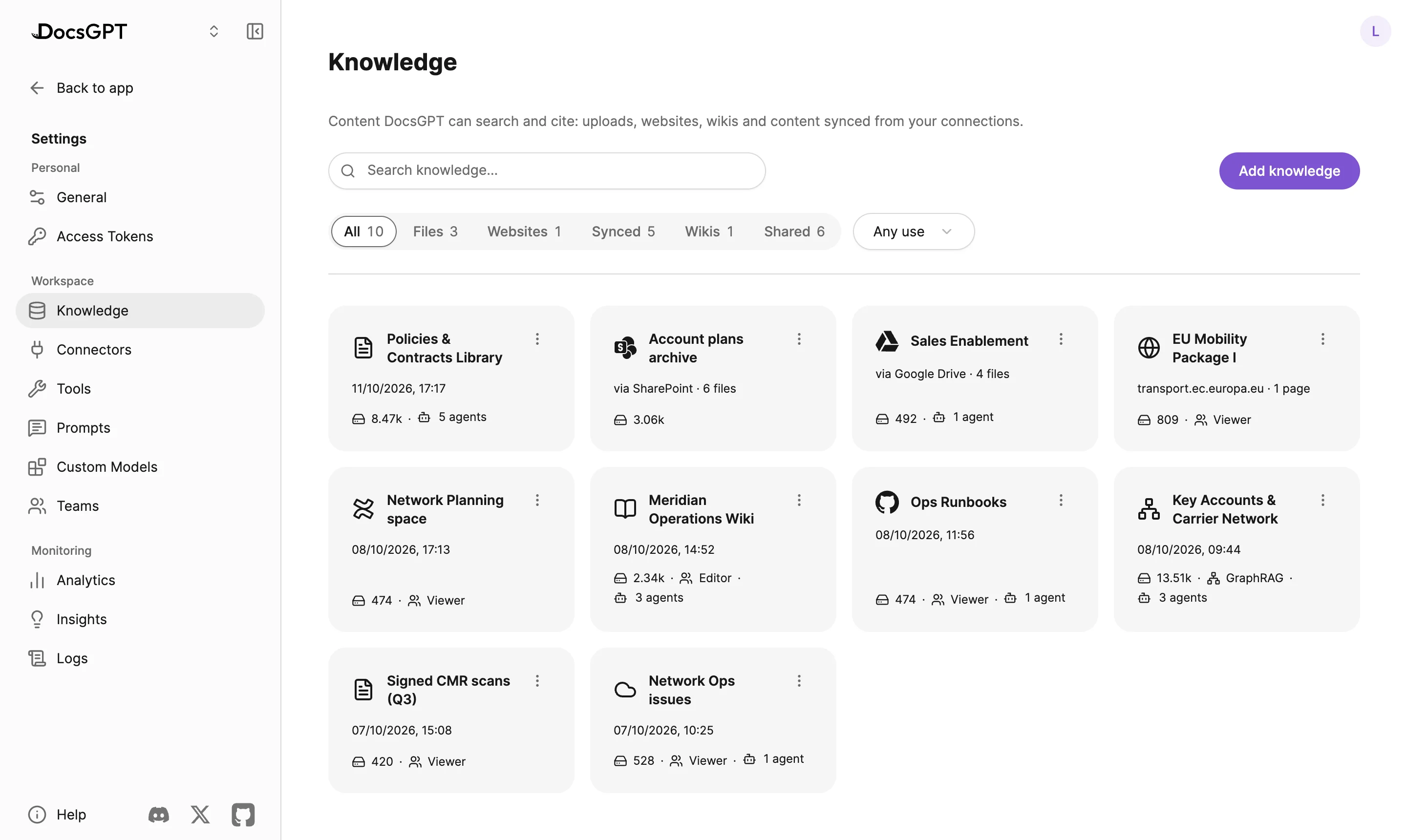
With no search or filter, page 1 opens with Needs attention: sources whose ingest failed that you can reingest, and those whose connection of yours needs Reconnect, in any folder. Later pages keep such sources in place in the list. All knowledge follows with the rest, led by any synced service still indexing its first copy. Once you have folders, Folders comes first and the sources in no folder follow under Sources.
Each source on the Knowledge page has a menu. Which items appear depends on the source type and on your access to it:
- View opens the source’s files and chunks. If you can edit the source, you can edit, add and delete chunks. While a sync or a page change runs on the source, a chunk change waits a few seconds, then is refused with “Another change to this source is running. Try again once it’s done.”
- Sync now appears for sources that are fetched again: websites, GitHub repositories and connector content. A sync replaces the content, so it can overwrite chunk edits.
- Settings opens one dialog for the source. A website source starts with its pages and schedule (see Manage the pages of a website source); a GitHub or connector source starts with Keep up to date, its sync schedule. Then come the retrieval and chunking settings. Retrieval changes apply on the next question. Chunking changes apply only after the source is re-ingested; for a website, GitHub or connector source, Reingest runs a sync, which fetches the pages or files again with the new settings. A connector source whose account was disconnected can’t be reingested until the account is connected again. See Per-source configuration.
- Test retrieval runs a question against the source and shows which chunks come back.
- Convert to wiki turns the source into editable wiki pages. This can’t be undone, and it stops the source’s sync schedule: a wiki doesn’t sync.
- Share shares a personal source with a team or a teammate, or shows who can use a team’s source. See Teams and sharing and Team workspaces.
- Move to folder files the source in one of your folders. See Move a source into a folder.
- Delete removes the source and its index. While a sync or a page change runs on the source, it waits a few seconds, then is refused with the same message; delete it once the change is done.
An open source keeps the same actions in its header: Test retrieval, then its main action (Add file for an upload, Add pages for a website, Sync now for a synced source), then the ⋯ menu with the rest. Delete source there returns you to the Knowledge page.
What a reingest of uploaded files re-embeds
Adding, removing or replacing files in an uploaded source, or choosing Reingest, re-embeds only what changed. Each file’s content hash is stored when it is ingested, so a file is re-embedded when it was added or its content changed, and its chunks are deleted when it was removed. Files with unchanged content keep their chunks, including chunks you edited. When nothing changed, nothing is embedded.
Two cases re-embed every file once:
- A chunking change. After you change the chunking settings, the next reingest rebuilds the chunks of every file.
- A source ingested before content hashes were stored. Its first reingest re-embeds every file and stores their hashes. Later ones re-embed only what changed.
To replace all of a source’s files at once, for example from a script, send the new set with the sync operation of POST /api/manage_source_files. Files and ZIP archives are accepted, with the same limits as an upload, and a ZIP keeps its folders. Files that are not in the new set are removed, and the source keeps its ID, so agents that use it keep working.
To build a knowledge graph over a source, see GraphRAG.
Organize knowledge in folders
Folders group sources by team, customer or topic. They are optional: until you create one, the Knowledge page looks as described above. Filing a source in a folder doesn’t change the source, its settings or the agents that use it.
Create a folder
Click New folder next to Add knowledge, type a Folder name and click Create. A folder created inside an open folder goes inside it. Folders nest up to three levels deep, such as Knowledge › Carriers › Rate archive; inside a third-level folder, New folder is unavailable. A name is up to 80 characters, and two folders in the same place can’t share a name, ignoring case.
With folders, page 1 of Knowledge shows them under Folders, above the sources in no folder (Sources). Each folder tile shows what it holds directly, such as 3 sources · 1 folder or Empty, and how many agents use it. Folders aren’t paged: all your top-level folders show on page 1.
Open a folder
Click a folder to open it. The trail above the list, such as Knowledge › Carriers, shows where you are; click a part of it to go back up. A line under it counts what the folder holds, and the folder’s ⋯ menu at the end of the row has Rename, Move to folder and Delete.
Inside a folder the page shows only that folder: its folders, then its sources. The search (Search in Carriers…), the kind filter and Any use, with their counts, cover the folder and every folder inside it. Add knowledge files the new source in this folder, and New folder creates one inside it. An empty folder says so and offers Add knowledge.
Move a source into a folder
Choose Move to folder from the source’s ⋯ menu. The Move ”…” dialog lists your folders: type in Search folders… to find one at any level, or click a folder’s arrow to see the folders inside it. The folder the source is in now is marked Current. Pick Knowledge (no folder) to take the source out of its folder, or click New folder to create one from the dialog. Then click Move.
A source is in at most one of your folders, so moving it takes it out of the one it was in.
To move a folder, choose Move to folder from its ⋯ menu; everything inside moves with it. A folder can’t move into itself or into a folder inside it, and a place where its folders would end up more than three levels deep is marked Too deep.
Search across folders
At the top of Knowledge, a search or a kind or usage filter looks in every folder and lists the results flat: folders whose name matches come first, then the sources, each showing the folder it’s in, such as Carriers › Rate archive.
Rename or delete a folder
Rename and Delete are in the folder’s ⋯ menu, on its tile or in the trail of the open folder.
Deleting a folder never deletes a source. Its sources and folders move up to the folder it was in, or to the top of Knowledge. The confirmation says what moves where and names the agents that use the folder: they lose its sources, because the folder comes off them. Sources those agents use one by one stay on them.
Personal and team folders
In Personal, your folders are your own: teammates don’t see them, and filing a source changes nothing for anyone else. You can file any source you can see, including sources teammates share with you, and each teammate files the same source in their own folders. Deleting a source takes it out of every folder.
A teammate sees one of your folders only when you give it to an agent you share, and then only its name; see Pick a whole folder.
In a team workspace, the folders are the team’s: the same for everyone in it, and one tree for agents, knowledge, tools and prompts. See Team workspaces.
Folders through the API
A workspace has one folder tree for agents, knowledge, tools and prompts. type names the kind: source for Knowledge, agent, tool or prompt. On a list it only picks what item_count counts and can be left out; filing items needs it. A list or a create works in the request’s workspace, the team’s tree when it names a team (see Work in a team workspace).
| Method | Path | What it does |
|---|---|---|
GET | /api/folders?type=source | The workspace’s folders, oldest first, each with id, name, parent_id, item_count and folder_count (what it holds directly). A Knowledge folder also has used_by, the agents that use it. |
POST | /api/folders | Create one: {"type": "source", "name": "Carriers", "parent_id": null}. Answers 201 with the folder. |
PUT | /api/folders/<id> | Rename or move it: name, parent_id (null moves it to the top level). |
DELETE | /api/folders/<id> | Delete it. Its contents move to its parent; the response counts them in moved_items and moved_folders. |
POST | /api/folders/items | File items: {"type": "source", "folder_id": "<id>", "ids": ["<source id>", …]}, up to 500 ids. folder_id: null takes them out of their folder. The response lists moved ids and skipped ones, which you can’t see. |
A refused request answers {"success": false, "error": <code>, "message": …}: 400 with invalid_folder_name, folder_too_deep, folder_cycle or invalid_ids, 409 with folder_name_taken, and 404 with folder_not_found.
Every source in GET /api/sources and GET /api/sources/paginated carries your filing: folder_id and folder_path, the folders from the top level down as [{"id", "name"}]. /api/sources/paginated also takes:
folder: one of your Knowledge folder ids, orroot. The counts (kind_counts,usage_countsandsubtree_total) cover the folder and every folder inside it;rootcovers everything. An unknown folder answers404.direct:truelists only the sources filed directly infolder(withroot, the sources in no folder);false, the default, lists the whole subtree.
To file a new source as you add it, send folder_id with POST /api/upload, POST /api/remote or POST /api/sources/wiki, or sync.folder_id with POST /api/connections/<id>/setup. It must be one of your Knowledge folders, or the request answers 404 with folder_not_found.
The agent folder routes under /api/agents/folders, including move_agent and bulk_move, still work: they are the same as /api/folders with type=agent. With a personal access token, Knowledge folders need sources:read or sources:write, and agent folders agents:read or agents:write.
Use knowledge in chats and agents
- In a chat without an agent, click Knowledge in the composer and select one or more sources. Answers draw on the chunks retrieved from them and cite them. The menu’s footer has Go to Knowledge and Upload new.
- In an agent, pick sources in the agent builder’s Knowledge field (Select knowledge). Knowledge is optional: without it, the agent answers from the model and its tools. When you chat with an agent, the composer hides the Knowledge button because the agent uses its own. See Agents.
Both pickers show an icon for each source’s kind and the same details line as its card, with a badge when its ingest failed or is running, or its connection needs Reconnect. The sources and folders already selected come first, under Selected, then your Folders and your sources. The same kind filter (All, Files, Websites, Synced, Wikis, Shared) narrows the list once you have more than 10 sources. When teams share sources with you, they are listed under Shared with team.
Pick a whole folder
In a chat, an agent or a workflow’s AI agent step, you can pick one of your folders like a single source:
- Tick a folder to give everything in it, including the folders inside it. An unpicked folder row counts what it holds directly, such as 3 sources · 1 folder; once ticked it reads, for example, 7 sources · new sources included.
- Open a folder with its arrow to see what’s inside or to pick single sources from it. A trail under the search, such as Knowledge › Carriers, and Back take you back up. The first row is All of Carriers, then In this folder lists its folders and sources. Inside a picked folder, everything is ticked, greyed out and marked Included with Carriers. A folder where you picked only some sources shows a partly filled box and, for example, 1 of 2 picked.
- Search lists matching folders first, then sources, each led by the folder it’s in, such as Carriers › Rate archive. Inside an open folder it covers that folder and the folders in it. A source a picked folder already brings in shows a greyed tick.
- A kind filter (Files, Websites and so on) lists the matching sources flat, each led by the folder it’s in, without folder rows.
A picked folder stays up to date: each answer uses what is in the folder at that moment. A source you file in it later reaches the agent or chat without editing anything, and a source you move out of it stops being used, unless it is also picked on its own. Picked sources and folders count once each, and a source in both is used once.
- In a chat without an agent, the folder applies to that conversation. When the only thing picked is one folder, the composer’s Knowledge button shows the folder’s name; with more, it counts each folder and source once.
- In the agent builder, the Knowledge field counts each folder once, such as 2 selected, and a hint under it names the folders, such as Carriers and Customs are folders: their 9 sources today, and any added to them later.
- In a workflow, an AI agent step’s Knowledge picker takes folders the same way. See AI Agent Node.
A folder reads as its owner’s filing: the sources its owner filed anywhere in it that its owner can still use. You can pick only your own folders. Adding yours to an agent or workflow someone else owns asks you first, as for a sponsored resource: the dialog names the folder and says that sources you file in it later run with your access too. On an agent shared with you as an editor, a teammate’s folder shows by name, with whose folder it is, such as lena@example.com’s folder · 5 sources; you can remove it, but not change what’s in it. It gives the agent only sources the agent’s owner can use, or sources its folder’s owner owns or edits, and it stops, giving the agent nothing, once that teammate can no longer edit the agent. The picker then marks it Stopped, and the hint under Knowledge says, for example, Rate cards stopped: it’s lena@example.com’s folder, and they can no longer edit this agent. The teammate is named the way Added by … names a sponsor, by their email; someone who doesn’t know them reads Rate cards stopped: its owner can no longer edit this agent. A deleted folder comes off the agents that used it and gives nothing to workflow steps that still name it; a step’s picker lists it as Deleted folder, No longer exists. Take it off.
Through the API, an agent’s folders are its folders field, a list of folder ids, on POST /api/create_agent and PUT /api/update_agent/<agent_id> (a JSON string in a multipart form). [] clears them, and leaving the field out keeps them. Adding a folder that isn’t one of your own Knowledge folders answers 403 with folder_not_accessible; folders already on the agent stay when someone else saves it. Adding your own folder to someone else’s agent answers 409 with sponsor_confirmation_required until confirm_sponsor lists "folder:<id>" (the same for a workflow step, through PUT /api/workflows/<id>). Every agent output has folders, and GET /api/get_agent adds folder_details: each folder’s id, name, source_count (the sources it gives the agent now), owner_id and owner_name when it’s someone else’s you know (their email, else their user id, as for a sponsor), and stopped with a reason (sponsor_cannot_edit_agent, or deleted with name: null). A workflow’s AI agent step takes folders in its config. For a chat without an agent, send active_folders; see Request parameters.
Attach in the composer is different. It adds a file to the current conversation only. To reuse a file across chats and agents, add it to Knowledge instead.